How to use Invoice Extractor
Invoice Extractor reads vendor invoices that land on a monday.com board — from the email body, a PDF/image attachment, or both — and writes the vendor, invoice number, amount, and due date into your columns. This guide covers installation, first-time setup, and every building block.
What’s included
Invoice Extractor adds these building blocks to your monday.com workspace:
| Component | What it does |
|---|---|
| Board View | The invoice list with extraction status, filters and totals, plus one-click column setup and the auto-extract toggle. |
| Item View | Shows the invoice email and attachment, runs the AI extraction, and lets you review and correct every field before saving. |
| Auto-extract recipe | “When an item is created, extract invoice data into the columns” — runs automatically for every new invoice. |
| Settings View | Your plan, monthly extraction usage, and what each plan includes. |
Prerequisites
- A monday.com account (any plan — Free, Standard, Pro, or Enterprise).
- A board where you want invoice data to land (e.g. an accounts-payable board).
Step 1 — Install & permissions
Install Invoice Extractor from the monday.com Marketplace. During install you’ll be asked to approve these permissions:
- Read boards — read your items and column definitions so extracted data lands in the right place.
- Read updates — read the invoice email body, which monday stores in the item’s updates when an email creates an item.
- Read files — read the PDF or image invoice attached to the item or its updates.
- Write boards — create the standard invoice columns and write the extracted values (vendor, invoice #, amount, dates, status).
Step 2 — Send invoices to the board
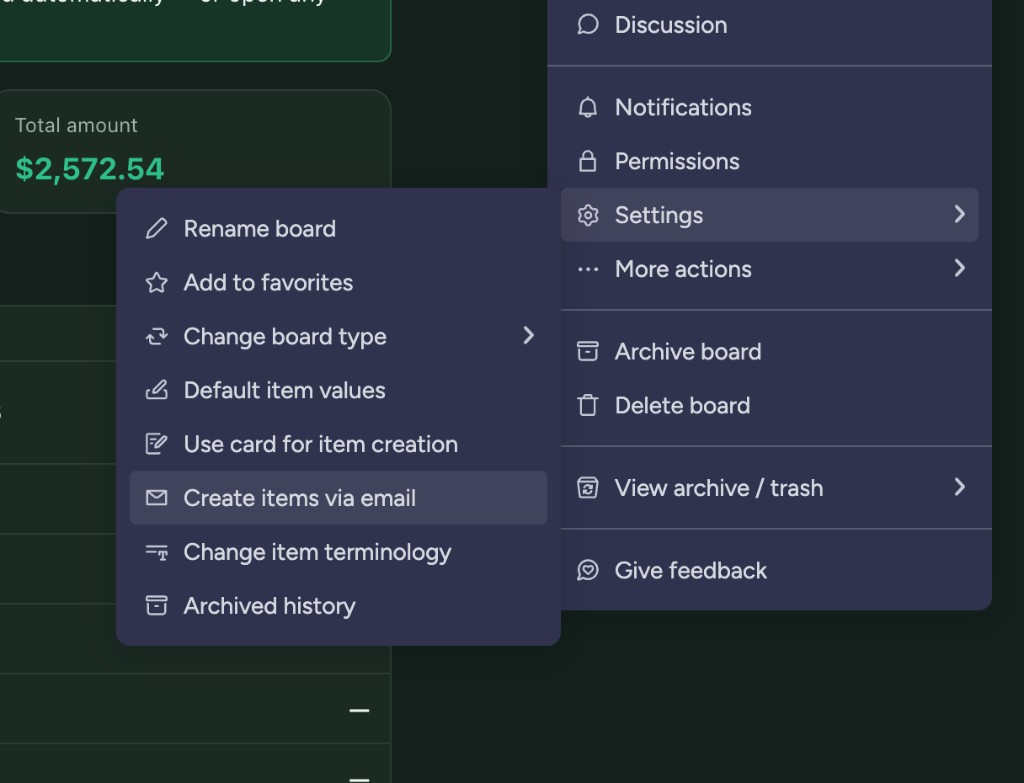
Every monday.com board has its own email address — any email sent to it becomes a new item on the board. To find it, open the board menu (⋯ next to the board name) and choose Settings → “Create items via email”:
In the dialog, copy the Secure address — the one that “can be used by people outside the company.” Vendor invoices come from outside your monday.com account, so this is the address to use. (The Custom address only accepts mail from your account’s own members.)
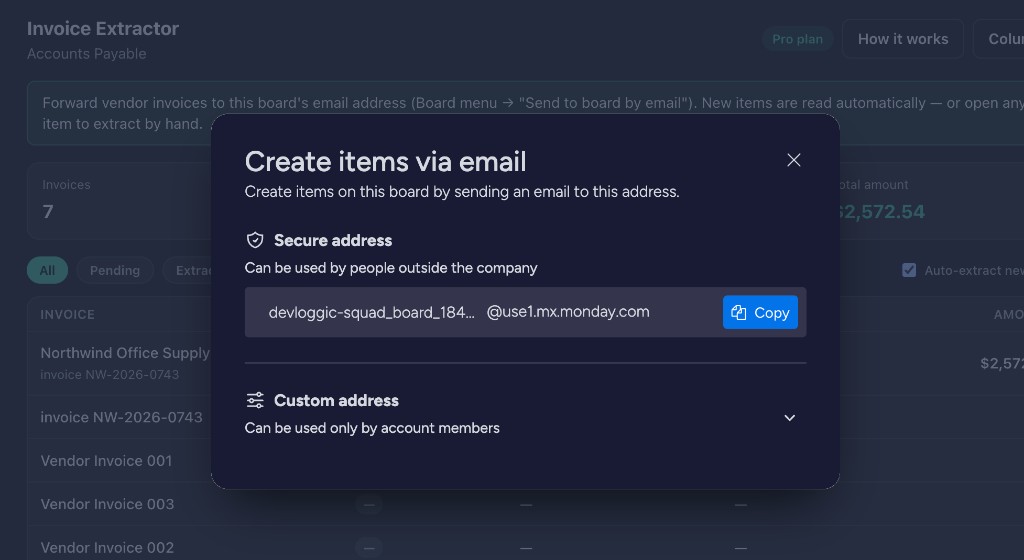
Point your accounts-payable inbox — or a Gmail/Outlook auto-forward rule — at that address. Each incoming invoice becomes a new item: the email subject is the item name, the email body lands in the item’s updates, and any PDF or image is attached to the item. That’s exactly what Invoice Extractor reads.
Step 3 — Add the views & set up columns
Add the Invoice Extractor board view (the “+” next to your board tabs → Apps → Invoice Extractor). The first time you open it, a setup panel appears. You can either:
- Create standard columns — one click adds Status, Vendor, Invoice #, PO #, Amount, Tax, Currency, Invoice Date, Due Date, and Notes columns.
- Map manually — if your board already has columns, choose which existing column maps to each invoice field.
You can reopen this any time with the Columns button in the board view.
Step 4 — Extraction
Invoices are read in two ways:
- Automatically — turn on Auto-extract new items in the board view (Pro plan). Each new item is read and the fields are written, flagged Review when confidence is low.
- Manually — open any item’s detail view, tap Extract invoice data, review or correct the fields, then tap Save to board. A confidence score and a review warning help you catch anything unusual.
User roles
Admins and members get the full experience. Viewers (view-only seats) can’t use the monday.com API, so they see a notice asking an admin to assign a seat.
Frequently asked questions
Does it read both the email body and the PDF?
Yes. Invoice Extractor reads the email body (from the item’s updates) and the attached PDF or image in one pipeline, preferring the attachment when the two disagree.
Does AI use my data for training?
No. OpenAI’s API does not train on customer data, and we don’t store your email bodies or attachment files after extraction.
What permissions does Invoice Extractor need?
boards:read — to read items and columns. updates:read — to read the invoice email body stored in item updates. assets:read — to read PDF/image attachments. boards:write — to create the invoice columns and write extracted values.
What happens when I uninstall?
We delete your account data within 10 days (typically within 7). Your invoice items remain on your monday.com boards.
Need help? Email support@devloggic.com — we typically respond within a few hours.