How to use Changebell
Changebell turns your monday.com board activity into a beautiful, public changelog. Your customers see a branded “What’s new” page updated automatically as you ship — no extra tools, no copy-pasting.
What’s included
Changebell adds these building blocks to your monday.com workspace:
| Component | What it does |
|---|---|
| Board View | The main workspace — draft, edit, and publish changelog entries directly from any board. |
| Dashboard Widget | An at-a-glance summary of recent changelog activity you can pin to any dashboard. |
| Public Changelog Page | A hosted, branded page (e.g. changebell.com/p/your-product) your customers can visit and subscribe to. |
| Embeddable Widget | A JavaScript snippet you can embed in your own site to show the latest updates. |
Prerequisites
- A monday.com account (any plan — Free, Standard, Pro, or Enterprise).
- At least one board with a Status column you use to track item progress.
- Recommended: a “Done” (or “Released”, “Shipped”) label on that Status column so Changebell knows which items to draft.
Step 1 — Install Changebell
- Find Changebell in the monday.com Marketplace (or click the “Add to monday.com” button on our website).
- Click Install. The app will request permission to read and modify your boards, read your user profile, and manage webhooks. These scopes let Changebell read board items, create columns when needed, and receive real-time notifications.
- That’s it — no extra accounts, API keys, or server setup.
Step 2 — Add the board view
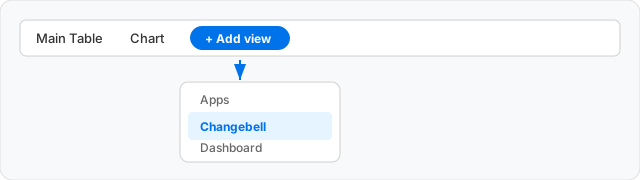
Open the board you want to track. Click + Add view → Apps → Changebell.
Step 3 — Complete the setup wizard
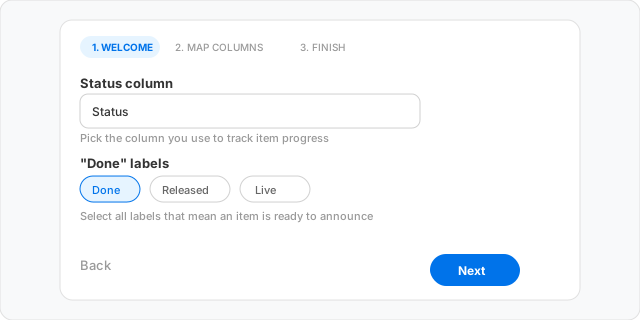
The first time you open the view you’ll see a 3-step wizard. It takes about a minute:
- Welcome screen — click “Get started”. You can also click “How it works” to revisit this guide.
- Map columns — pick the Status column and select the label(s) that mean “ready to announce” (e.g. “Done”, “Released”).
- Finishing touches (all optional):
- Category column: maps items to Feature / Fix / Improvement on the public page. If your board doesn’t have a dropdown column, click “+ Create” to add one.
- Description column: a long-text column used to generate richer AI drafts.
- Release group: a group whose name becomes the version label (e.g. “v2.4”).
- AI rewriting: toggle on to let OpenAI rewrite item names into customer-friendly release notes.
Step 4 — Draft & publish
After setup, the board view shows two panels side by side:
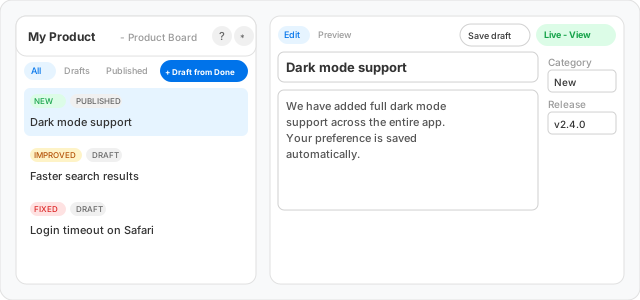
- Left panel (Draft Queue) — lists your changelog entries. Click + Draft from Done items to automatically generate entries for every board item in a “Done” state. Use the filter tabs (All / Drafts / Published) to narrow the list.
- Right panel (Editor) — select an entry on the left to edit its title, body (Markdown supported), category, version label, and date. Click Save draft to save, or Publish release to push it live.
- AI Rewrite — click Rewrite with AI to have OpenAI rewrite the entry into friendly, customer-facing language.
Published entries display a green Live — View page badge that links directly to your public changelog.
Step 5 — Share your public changelog
Every account gets a public changelog URL like changebell.com/p/your-product. Share it with customers, link it from your app, or embed the widget in your website.
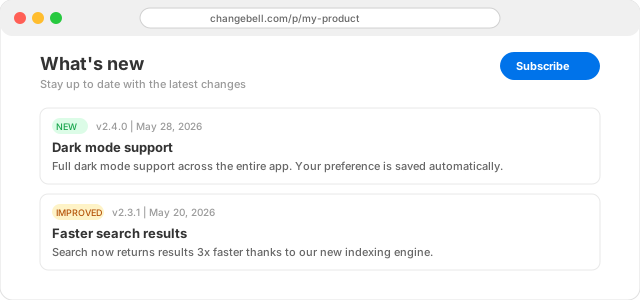
Customers can subscribe via email and receive automatic digests whenever you publish new entries.
Step 6 — Customize in Settings
Click the gear icon in the draft queue header to open Settings. From there you can:
- Change your brand color and logo.
- Set your page name and slug.
- Toggle AI rewriting on/off.
- Re-map columns without redoing the wizard.
Dashboard widget
Add Changebell to any dashboard for a quick summary of recent changelog activity: newest entries, publish count, and subscriber stats. Go to your dashboard, click + Add widget → Apps → Changebell.
Tips & best practices
- Keep entries short — 2–4 sentences works best. The first line is what customers see in the email digest preview.
- Use categories — tagging entries as New / Improved / Fixed helps customers scan for what matters to them.
- Publish regularly — consistent updates build trust with your users. Even small fixes are worth announcing.
- Viewers and guests see a read-only version of the board view. Only members can edit and publish.
Frequently asked questions
Does AI use my data for training?
No. OpenAI’s API does not train on customer data. You can also turn AI off entirely in Settings.
What permissions does Changebell need?
boards:read — to read item names and statuses. boards:write — to create optional columns (Category, Description) on your board when you click “+ Create”. me:read — to identify the current user. webhooks:write — to receive install/uninstall lifecycle events.
Can I use Changebell on multiple boards?
Yes. Add the Changebell board view to as many boards as you like — each one gets its own column mapping configuration.
What happens when I uninstall?
We delete your account data within 10 days (typically within 7). Public pages become inaccessible immediately.
Need help? Email support@devloggic.com — we typically respond within a few hours.